Posts

Send SMS Using Gammu Command Line Tool
Image
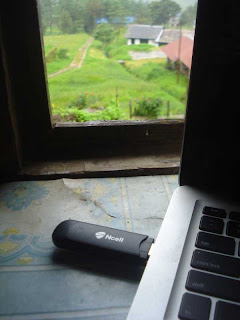
My teleco has provided Internet facility in which you can put data SIM card in a USB dongle and use Internet. Its call Ncell Connect . In neighboring country like India, some of them are called  Reliance Netconnect+ . In such data SIM card you can only use SMS and Internet. You can't make phone calls. So to recharge or to know about the balance or data balance you have to send SMS. For Windows the software to do all of these comes bundled with the USB dongle. For Linux we'll find our own way. Let us use awesome program called gammu . For Ubuntu, click here to install. After pluging in the USB dongle open terminal and type: dmesg | grep tty This will tell you where your USB dongle is connected. For example mine is ttyUSB0 . Make note of this. Now run gammu-config to configure gammu. You only have to change one thing here. In Port the value should be /dev/ttyUSB0 where ttyUSB0 is what you noted above. Press OK and now we are ready to run gamm...

Generate Word With Random Characters In Linux

Using following simple bash command we can generate words with random characters. tr -dc a-z < /dev/urandom | head -c 10 | xargs This will generate a word with 10 random characters (letter). The random characters will be from a-z. To add other characters as seed, for eg: A-Z, run tr -dc a-zA-Z < /dev/urandom | head -c 10 | xargs As you might have figured out, you can add characters as parameters to tr command. And hence, tr -dc a-zA-Z0-9 < /dev/urandom | head -c 10 | xargs will generate words that will include digits as well. Similarly we can include underscore or other symbols as tr -dc a-zA-Z0-9_- < /dev/urandom | head -c 10 | xargs To generate different number of characters we can change the parameter to head command. In all of the above examples value 10 was given and hence 10 characters word. tr -dc a-zA-Z0-9_- < /dev/urandom | head -c 5 | xargs will generate 5 random characters word. We can even put this command in a script file and give...

Threaded Commenting In Blogger; No More Disqus Needed

Image
Blogger has rolled out threaded commenting. That means we'll no longer need third party system like D isqus . Though it doesn't have all the feature of services like Disqus, having ability to reply to comments serves the ultimate purpose. To get this make sure that you have following setting in blogger: Settings Posts and Comments "Embedded" in "Comment Location" drop down Settings Other "Full" in "Allow Blog Feed" drop down. Happy Blogging.

Google Plus Available for Google Apps User

From today, Google+ is available to Google Apps user as well. Better late than never. Before you can use Google Plus, your domain administrator must enable it for your domain. If you are a domain administrator login to the domain panel and go to Organization & Users  -> Services . In there search for Google+ and enable it and save. Now all the users in that domain can use Google+.

Block Ads Using Host File In Ubuntu

The easy way to block ads or any other malware, pornography site and so on is by using the host file. Whenever you open any web site the domain (or FQDN) has to be converted to IP. For that it uses DNS server. But before using DNS it checks if there is an entry in the host file. So we'll put all the domain name of the adserver with wrong IP address so that they can't function. For eg: if we put Google.com as 127.0.0.1, our browser will try to find google.com in the IP address 127.0.0.1 which turns out to be our own computer and there isn't any Google's webserver in our computer. So it won't work. But filling the entry for all the ad servers manually is tedious task. This is where sites like  http://hosts-file.net/  comes into play. From this website we can download the host file that contents entry for ads, malware, torrent, pornography or subset of any. So if we want to block only ads lets download the host file for blocking ads by clicking here  or...

Increase Free Space On HTC Desire Android Phones

Are you running out of free space on phones like HTC Desire and variants? It only has about 150MB of free space and after official Gingerbread 2.3.3 update the free space has decreased. Its really frustrating seeing all those apps with 20MB+ size eating up valuable space on Android phones. Even with App2SD I had very very difficult time maintaining free space. Installing apps like Facebook, Google Plus, Google Reader would eat up all the space. Today I used link2sd to increase free space on my Android phone and now I've more than 1GB of free space for installing apps. I've been installed so so many apps now. link2sd can move your application apk, dex and lib files to second partition of your SD card and creates a symlink where necessary. Even when you mount your SD card in computer the apps in SD card will work as only the first partition will be mounted in computer. Requirements : Root MicroSD card Clockworkmod recovery to partitoin the SD ca...

Galaxy Nexus With Ice Cream Sandwich

Samsung and Google just lunched the first Ice Cream Sandwich phone, The Galaxy Nexus . They have bumped the Android version to 4.0. As rumor had spectated the specifications are as follows: Display: 4.65 inch with HD Super AMOLED (1280 x 720)  6:9 sreen ratio 100,000:1 contrast ratio 1.2 GHz dual-core processor 1 GB RAM 16 GB or 32 GB storage HSPA+ or LTE 5 megapixel rear camera with LED flash zero shutter lag 1.3 megapixel front facing camera 1080p video recording and playback Panorama mode NFC Some key points from the event: As the bezel is only 4.29 mm, they were able to make bigger display without increasing the phone size. New typography "Roboto" for HD paper density displays. No physical button on screen. Only virtual button that is part of the UI. Widgets and Apps available on same menu under tab. Resizeable widgets. Application swapped left to right. Favorites tray. Multitask tray to switch app with ...

Ice Cream Sandwich Event

Image
Google and Samsung is hosting, the much awaited Ice Cream Sandwich event tomorrow October the 19 th at Hong kong. The event will start at 1000 hours Hong kong time. We can watch the program live in Youtube at http://youtube.com/android . It will start at 0745 hours Nepal standard time. I hope the event will not be all about over hyped voice app that I've been using in my phone from past few years.

[Solved] invalid partition table on /dev/sda -- wrong signature 0.

I was trying to use Disk Utility program to edit some partition in my system. But I got a strange error message "invalid partition table on /dev/sda -- wrong signature 0." and couldn't proceed. So I tried with gparted(Gnome Partition Editor). The result wasn't any different. Today while clean installing Ubuntu 11.10 Oneiric Ocelot, the installer said that there was no partition in my disk. While trying live CD, I could find all the partition and read data. If you also encounter any of the above problem, simple run fdisk by sudo fdisk /dev/sda press p and then press w . You'll see a message "The partition table has been altered!". Now try running the partition editor or the installer again.

Perm Root HTC Desire Gingerbread 2.3.3

This guide is for permanently rooting HTC Desire running stock Android Gingerbread 2.3.3 . If you want to temp root then you can follow this guide. Before starting please be aware that problems while rooting can brick your phone. While the process in this guide is relatively simple and easy, I can't be held responsible for whatever happens. Enable USB debugging in your phone by going to  Settings  ->  Applications  ->  Development . Plug in your phone to the computer. Go to Revolutionary website  http://revolutionary.io/  . From there download revolutionary software. Leave this browser tab opened. We need to generate Serial key later. Extract the downloaded software on your computer and run the software with root permission. $sudo ./revolutionary It will tell you your serial number and ask for the beta key. Copy the serial number and go to the browser tab we left open while downloading the software. Put the serial key there...

Enter Unicode Character In Linux

In Windows Unicode character can be entered by pressing and holding ALT  key and typing the desired code. In Linux to enter Unicode character press CTRL+SHIFT+U , a character like u  will come. Now type your character code and you will see your Unicode character. So to type © (Copyright symbol) Press  CTRL+SHIFT+U You'll see a character like u Type the code for your character, for copyright symbol its 00A9. So type 00A9 You'll see your desired Unicode character. In short,   CTRL+SHIFT+U  and 00A9

This Is How Steve Jobs Was Inspired To Create iPod

Image
How Steve Jobs was inspired to create iPod.